 You can pay through Paypal, but you
don't
need a Paypal account to pay.
You can pay through Paypal, but you
don't
need a Paypal account to pay.Whether you've put the free version on your browser and tried it, or return regularly to this web, sooner or later you will want to upgrade to the full version. This could be to get access to more features or just to show appreciation for the service you've received for free.
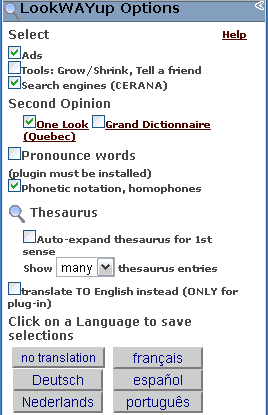
If you have the full registered version, you get the ability to customize your copy of LookWAYup. Just press the "Options" links. You can add or suppress entire sections of the interface or customize them. Of course you can suppress advertising. You can select from a list of over 30 search engines, or remove the search section altogether. You can select the additional tools and information that shows up on the page, including pronunciation. Most importantly, you can choose the language to use for translation if you want.
On your free version, click on the link that says
"register it" or
"Full Version". There is often
a promotion that lets you try it for free for a month. All you need to do
is provide an e-mail address. You can pay through Paypal, but you
don't
need a Paypal account to pay.
At the end of the registration process, you will get a chance to set options. Press on the "Set Options" or "Options" link. You'll probably want to remove the "special offers" (ads) and customize the list of search engines available for contextual search, or remove the search section altogether.
There is an interesting set of configuration options for registered users of the full version: pronunciation. It gives you phonetic notation of the different pronunciations and lists homophones that sound alike. You can also have the computer say the word out loud. This requires that you download a free plug-in for speech called Speaks For Itself. The installation has several steps and is a little slow. Be patient. Make sure that you get to the last step, where you confirm that you have downloaded and installed "voices". The best one is called Mary. Once you have installed voices, you can close the "Speaks For Itself" window. Now you can go back to the Options window and select pronunciation options. The computer will say the word out loud either when you click on the little speaker icon or, if you choose, whenever you look up a word.