Install
This page pops up a window showing how to put LookWAYup on your browser. If this window does not appear, your browser settings may prevent pages from popping up, or you may have a popup blocker, Turn off this feature for a moment (there are no popup ads on this site) then press this link.
When it is done, there should be a LookWAYup button visible in the browser's Links bar or Personal toolbar (above). Try it. Double-click a word on this page to highlight it, then press the link in your browser that says "LookWAYup".
Troubleshooting - Internet Explorer
If you have XP Service Pack 2, you probably have Microsoft's broken popup blocker. To overcome it, press the control key while clicking on this link. A blank window will appear with the hourglass cursor. Press Escape then F5.After installation, if you can't see the LookWAYup button, you can make it visible (on Internet Explorer) by selecting "View" from the menu, then "Toolbars" and checking "Links" (Note: On IE 6 "Lock the Toolbars" must be unchecked first):
 |
A better way to install LookWAYup in Internet Explorer for Windows puts it into the standard button bar rather than the Links base, and in the right-click menu. To install click here and select "Open this file from its current location". If you have customized your toolbars in the past you may then have to activate it: Select View|Toolbars|Customize... then pick LookWAYup from the list. (Click to uninstall)
Troubleshooting - Firefox
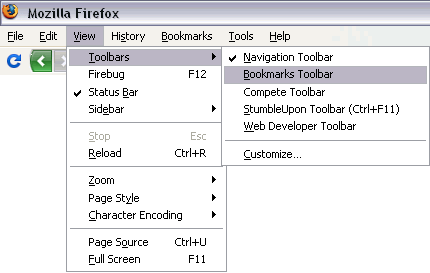
On Firefox, if your Bookmarks Toolbar is not visible now, it may have to be enabled.
make sure View|Toolbars|Bookmarks Toolbar is selected or do as shown: